> For the complete documentation index, see [llms.txt](https://help.onform.com/llms.txt). Markdown versions of documentation pages are available by appending `.md` to page URLs; this page is available as [Markdown](https://help.onform.com/athletes/join-your-coach/join-your-coach-with-an-invite-code.md).
# Join your coach with an invite code
Use the invite code from your coach to connect to them in Onform. Athletes connected to a coach use Onform for free.
Works on: iPhone, iPad, Android and web.
Your coach sends you an invite with a short code. Entering it connects you to your coach's workspace, where you'll see the lessons and videos they share. **Athletes connected to a coach use Onform for free**, so you don't need to subscribe.
## Before you start
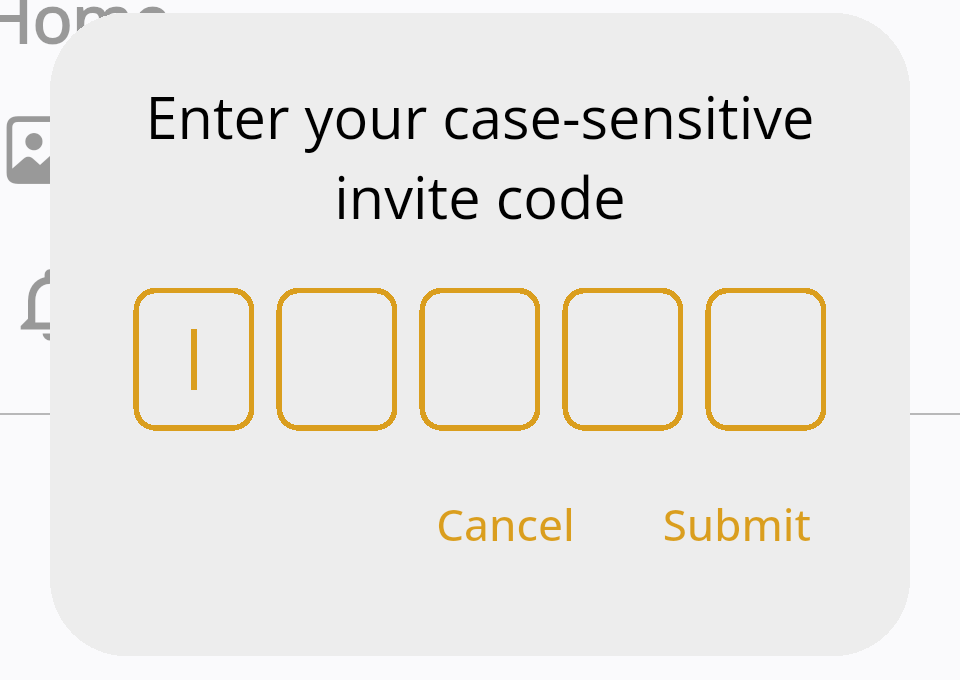
* Find the code in your coach's invite email or message. It's **5 characters**, **case-sensitive**, and has at least one capital letter.
* Use the same sign-in method you'll use on every device (Apple, Google, Microsoft or an email code). The connection belongs to that sign-in.
## Enter your code
{% tabs %}
{% tab title="iPhone and iPad" %}
**New to Onform:**
1. Download Onform from the App Store and open it.
2. Tap **I Have An Invite**, then enter your code where it says **Invited to Onform? Enter your invite code below**.
3. Finish creating your account.
**Already have an account:**
1. On the Home screen, tap **Personal Account** at the bottom (or the name of the organization you're in).
2. Tap **Enter Invite Code** and type the code exactly as your coach sent it.
3. Tap your coach's name to see what they've shared.
{% endtab %}
{% tab title="Android and web" %}
**New to Onform:**
1. Download Onform from Google Play, or open the web app.
2. Tap **I Have An Invite**, then create your account.
3. Enter your code as described below.
**Already have an account:**
1. At the top of the Home screen, tap the account name (it may say **Personal Account**).
2. Under **Have an invitation?**, tap **Enter Invite Code**.
3. Type the code exactly as your coach sent it, then tap **Submit**.
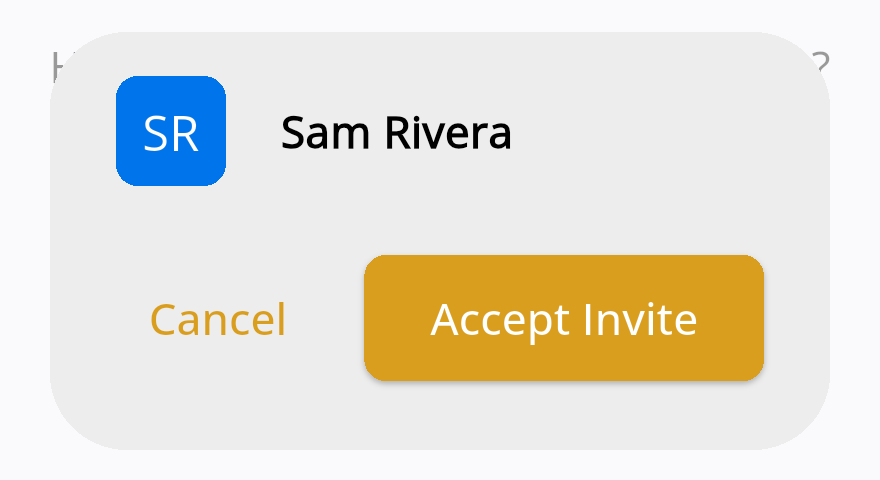
4. Check it's your coach's name and tap **Accept Invite**.
5. Tap your coach's name to see what they've shared.
On Android
Check the name, then tap Accept Invite
{% endtab %}
{% endtabs %}
If entering the code fails while you're signing up, create your account first and enter the code afterwards from the account menu on Home. That often works when the first try didn't.
After your code is accepted, you won't need it again. Just sign in.
## If the code doesn't work
| What you see | What to do |
| ------------------------------------------------------ | -------------------------------------------------------------------------------------------------------------------------------------------------------------------------- |
| **Invalid Invite Code** or **Not a valid invite code** | Check each character and its case: 1 and l, 0 and O look alike. Don't add spaces or a + sign. Copy and paste the code if you can. |
| The code is 4 characters | Older 4-character codes no longer work. Ask your coach for a new invite. |
| "Already accepted" or "already used" | Each code works once. If you already joined, you're connected: sign in with the method you used that first time. If someone else used it, ask your coach for a new invite. |
| You entered the code but can't see your coach | You may be signed in with a different account (for example Apple on one device and Google on another). Sign in with the method you used when you accepted the invite. |
| Your coach's workspace is empty | Your coach may not have shared anything yet. |
If you left a workspace, you can't rejoin with the same code. Ask your coach to add you back.
## For parents
Parents join by invite too, and it's free: you don't pay when your child's coach invites you. Each person needs their own invite, so ask the coach for a separate code for you. See [Follow your child's progress](/athletes/for-parents/follow-your-childs-progress.md).
## Related
* [Why am I asked to pay?](/athletes/join-your-coach/why-am-i-asked-to-pay.md)
* [Sign-in methods and more than one account](https://github.com/Onform-Inc/onform-docs/tree/main/account/sign-in-and-accounts/sign-in-methods-and-more-than-one-account.md)
---
# Agent Instructions
This documentation is published with GitBook. GitBook is the documentation platform designed so that both humans and AI agents can read, navigate, and reason over technical content effectively. Learn more at gitbook.com.
## Querying This Documentation
If you need additional information that is not directly available in this page, you can query the documentation by asking a question.
Perform an HTTP GET request on the following URL with the `ask` and `goal` query parameters:
```
GET https://help.onform.com/athletes/join-your-coach/join-your-coach-with-an-invite-code.md?ask=&goal=
```
`ask` is the immediate question: it should be specific, self-contained, and written in natural language.
`goal` is what the user is ultimately trying to achieve, the reason they need the answer. Sharing it helps GitBook give you a better, more relevant answer. A goal is most helpful when it describes the outcome the user wants rather than restating the question. For example, with `ask=how do I create an API token`, a goal like `automate deployments from our CI pipeline` lets GitBook tailor the answer to that use case.
The response will contain a direct answer to the question and relevant excerpts and sources from the documentation.
Use this mechanism when the answer is not explicitly present in the current page, you need clarification or additional context, or you want to retrieve related documentation sections.