> For the complete documentation index, see [llms.txt](https://help.onform.com/llms.txt). Markdown versions of documentation pages are available by appending `.md` to page URLs; this page is available as [Markdown](https://help.onform.com/coaching/analyze/how-to-compare-videos.md).
# Compare two videos
Play two videos side by side or overlaid with Compare: pick the second video, link them, step frame by frame, draw, and record a Voice-over over both.
Works on: iPhone, iPad and Android. Compare isn't in the web app.
Compare plays two videos together, so you can put an athlete's rep next to a demo, this week's serve next to last month's, or a left-hander next to a right-hander. Link the two videos so they play and step together, draw on them, and record a Voice-over over the comparison.
## Before you start
* You need two videos in Onform. They can come from any workspace, your Library or your reference videos.
* Film both from a similar angle and distance: side-on for a sprint start, from behind for a pitch or a golf swing. Compare shows the videos together, but it doesn't line them up or rotate them for you.
* If a video is sideways, rotate it on its own first, then compare.
## Start Compare from a video
{% tabs %}
{% tab title="iPhone and iPad" %}
1. Open the first video.
2. Tap **Compare** at the top of the screen. On iPhone it shows as an icon of two overlapping screens.
3. Tap **Add**.
4. Find the second video (see "Find the second video" below) and tap it to preview it, then tap **Select**.
You're back in the player with both videos.
To swap a video later, tap **Edit**, then tap **Change** on the video you want to replace. On the same screen, **Flip** mirrors a video and **Remove** takes it out. Tap **Done** when you're finished.
{% endtab %}
{% tab title="Android and web" %}
1. In the Android app, open the first video.
2. Tap **Compare**.
3. On the **Select Video** screen, pick the second video from the **Workspace** tab (videos in the same workspace) or the **Folders** tab (everything else).
If the second video isn't on your phone or tablet yet, Onform downloads it first, which can take a moment on a slow connection.
Compare isn't in the web app. Use the Android app, or an iPhone or iPad.
{% endtab %}
{% endtabs %}
## Start Compare from your Library
{% tabs %}
{% tab title="iPhone and iPad" %}
1. Open your Library, or a workspace's Library.
2. Tap **Select** and pick exactly two videos (photos work too).
3. Tap **Compare**. On iPhone it's the split-screen icon in the bar at the bottom.
{% endtab %}
{% tab title="Android and web" %}
1. In the Android app, open your Library, or a workspace's Library.
2. Tap the menu at the top right, then **Select**, and pick exactly two videos.
3. Tap the Compare icon at the top of the screen.
The Compare icon only appears once both videos are on your device. Onform starts downloading them when you select them. If the icon doesn't appear, open each video once (or use **Make Available Offline**), then select them again.
{% endtab %}
{% endtabs %}
## Find the second video on iPhone and iPad
When you tap **Add** or **Change**, Onform shows your videos so you can pick one:
* **On iPhone**, the tabs along the bottom show the workspace you're in, your **Reference Content** (or **Library - All Files**), **Folders** and **Recents**. Your starred videos are in the **Folders** tab, under **Starred**.
* **On iPad**, the list on the left has **Recents**, **Starred**, your **Folders**, and each athlete and team.
* Search for an athlete's or a team's name to jump to their videos.
* You can also record or import a new video from here.
Tip: star the demos and model reps you compare against most, so they're always one tap away under **Starred**.
## Line up and link the videos
At first each video plays on its own, so you can move each one to the same moment: the top of the backswing, the ball release, the front foot landing.
1. Move each video to the same point. Drag left or right across a video to step it a frame or a few at a time.
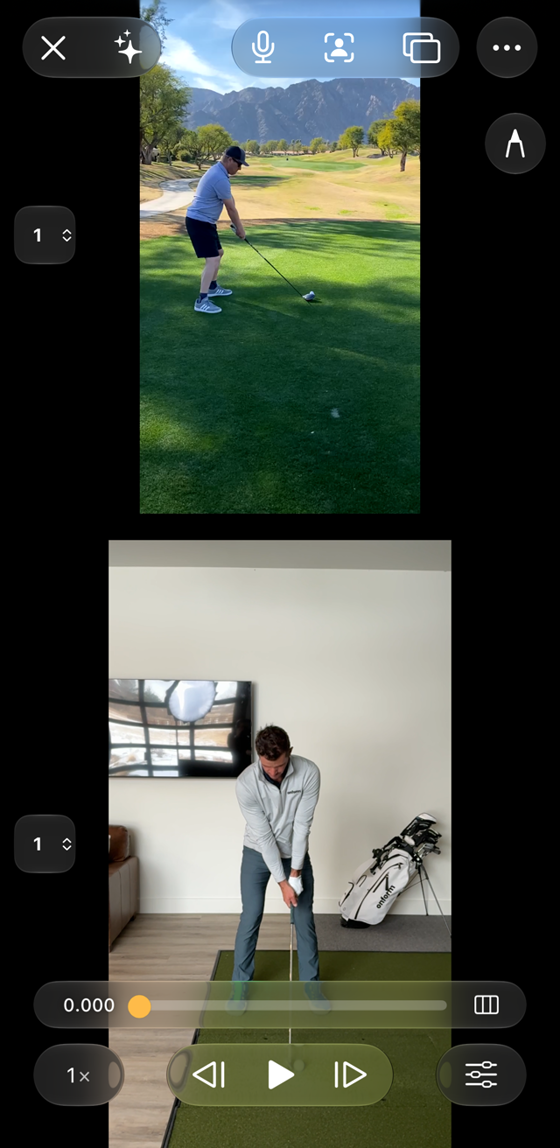
2. Tap **Link**. Now the two videos play, pause and step together. On iPhone, **Link** is in the **⋯** menu at the top right.
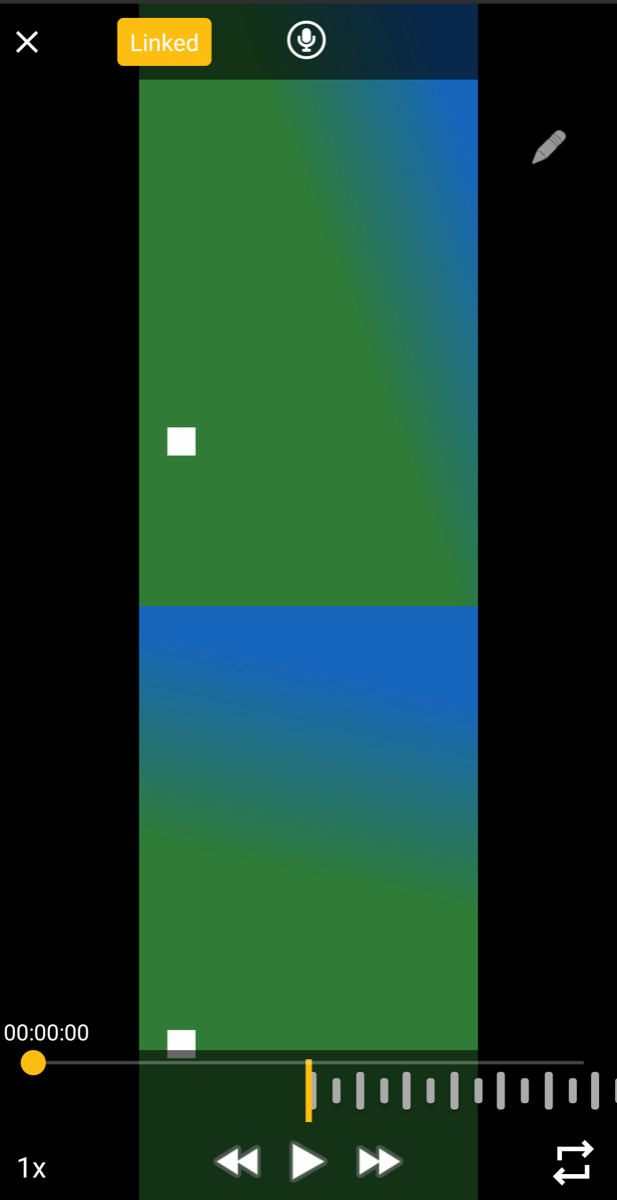
3. To line them up again, tap **Unlink**, adjust either video, then tap **Link** again. On Android the button reads **Linked** while they're linked: tap it to unlink.
On iPhone
On Android
If the two athletes move at different speeds, the videos won't stay perfectly in step. Link them at the moment that matters most to you.
**Link** only appears when you're comparing two videos, not a photo.
## Change the layout (iPhone and iPad)
* **Side by side or stacked:** Onform shows the videos side by side when you hold your device sideways, and one above the other when you hold it upright. Turn your device to switch.
* **Overlaid:** tap the layout button (two overlapping rectangles) at the top to lay one video over the other. Drag the slider to make the top video more or less see-through. Pinch and drag with two fingers to size and move a video so the athletes line up. Tap the layout button again to go back.
On iPhone, some Compare buttons, including **Link** and **Edit**, are in the **⋯** menu at the top of the screen.
## Draw on a comparison
Tap the pencil and draw on either video, just as you would on a single video. See [Finding and Using the Drawing Toolbox](/coaching/analyze/finding-and-using-the-drawing-toolbox.md).
## Record a Voice-over over a comparison
Set up your comparison first, then tap the microphone to record a Voice-over. Both videos, your drawings and your voice all go into the recording. On iPhone and iPad you can pause while you record, tap **Edit** to swap in a different video, then tap **Resume** to carry on. See [Record a Voice-over](/coaching/analyze/how-to-record-a-voiceover.md).
## If something goes wrong
| What you see | What to do |
| ---------------------------------------------------------------------------------------------------------- | -------------------------------------------------------------------------------------------------------------------------------------------------------------------- |
| Onform freezes or closes when you compare, or when you tap **Add** (iPhone or iPad) | Update Onform to the latest version from the App Store on every device you use. Starting Compare from your Library (select two videos, then **Compare**) also works. |
| You can't find Compare on the web | Compare isn't in the web app. Use the iPhone, iPad or Android app. A tablet gives you a bigger view. |
| The Compare icon doesn't appear in your Library on Android | Check you've selected exactly two videos and that both have finished downloading. Open each video once, then try again. |
| A video is sideways in Compare | Compare shows each video the way it's saved. Rotate that video on its own first, then compare again. |
| The videos drift apart while they play | Tap **Unlink**, line both videos up at the key moment, then tap **Link** again. Athletes who move at different speeds won't stay in step for the whole rep. |
| Your drawings don't shrink with the videos when you record a Voice-over over a comparison (iPhone or iPad) | Open Onform's **Settings**, go to **Video Player** and turn on **Disable HD Aspect Ratio Voice-overs**, then record again. |
Still stuck? Email with your device, the Onform version and a screenshot.
## Related
* [Record a Voice-over](/coaching/analyze/how-to-record-a-voiceover.md)
* [Finding and Using the Drawing Toolbox](/coaching/analyze/finding-and-using-the-drawing-toolbox.md)
* [Using the Angle Tool](/coaching/analyze/using-the-angle-tool.md)
* [Quick start: train on your own](https://github.com/Onform-Inc/onform-docs/tree/main/get-started/start-here/diy-athlete.md)
* [Quick start: you were invited by a coach](https://github.com/Onform-Inc/onform-docs/tree/main/get-started/start-here/athlete.md)
---
# Agent Instructions
This documentation is published with GitBook. GitBook is the documentation platform designed so that both humans and AI agents can read, navigate, and reason over technical content effectively. Learn more at gitbook.com.
## Querying This Documentation
If you need additional information that is not directly available in this page, you can query the documentation by asking a question.
Perform an HTTP GET request on the following URL with the `ask` and `goal` query parameters:
```
GET https://help.onform.com/coaching/analyze/how-to-compare-videos.md?ask=&goal=
```
`ask` is the immediate question: it should be specific, self-contained, and written in natural language.
`goal` is what the user is ultimately trying to achieve, the reason they need the answer. Sharing it helps GitBook give you a better, more relevant answer. A goal is most helpful when it describes the outcome the user wants rather than restating the question. For example, with `ask=how do I create an API token`, a goal like `automate deployments from our CI pipeline` lets GitBook tailor the answer to that use case.
The response will contain a direct answer to the question and relevant excerpts and sources from the documentation.
Use this mechanism when the answer is not explicitly present in the current page, you need clarification or additional context, or you want to retrieve related documentation sections.