> For the complete documentation index, see [llms.txt](https://help.onform.com/llms.txt). Markdown versions of documentation pages are available by appending `.md` to page URLs; this page is available as [Markdown](https://help.onform.com/coaching/analyze/how-to-record-a-voiceover.md).
# Record a Voice-over
Record a Voice-over in Onform: talk through a video while you slow it down, step through it and draw on it, then save it as a new video and send it to your athlete in a chat or from your Library.
Works on: iPhone, iPad and Android. You can watch Voice-overs anywhere, including the web app, but you record them in the iPhone, iPad or Android app.
A Voice-over is a short screen recording of you coaching a video: you talk your athlete through their rep while you play it, slow it down, pause it and draw on it. Onform saves it as a new video, so your athlete sees and hears exactly what you mean. It's the quickest way to give a lesson between sessions.
Your original video stays as it is. The Voice-over is a separate copy, marked with a microphone.
## Before you start
* Find the video you want to talk about: in a chat, in an athlete's workspace or in your Library.
* To talk through two reps at once, set up a comparison first. See [Compare two videos](/coaching/analyze/how-to-compare-videos.md).
* Find a quiet spot. Your phone or tablet records what you say through its microphone.
* On iPad, use Onform full screen (not in Split View or Slide Over), and keep some free storage on your device.
## Record a Voice-over
{% tabs %}
{% tab title="iPhone and iPad" %}
1. Open the video, or set up your comparison.
2. Tap the microphone at the top of the screen. If the bar is full, it's in the **⋯** menu as **Record voice-over**.
3. If your iPhone or iPad asks to allow screen recording, tap **Record Screen & Microphone**, or your Voice-over won't have sound.
4. Coach as you normally would: talk, play the video, slow it down, pause it, step through it and draw on it. While you record, the bar at the top shows pause, a timer and a red stop button.
5. Need a break? Tap pause, then **Resume** when you're ready.
6. Tap stop (the red square) when you're done.
When you start, the picture may shrink slightly into a widescreen frame with black around it. The frame is what ends up in your Voice-over.
{% endtab %}
{% tab title="Android and web" %}
1. In the Android app, open the video, or set up your comparison.
2. Tap the microphone.
3. If Onform asks for permissions, allow them. Onform needs them to record your screen and your voice.
4. Coach as you normally would: talk, play the video, slow it down, pause it and draw on it.
5. Stop the recording when you're done. Onform plays your Voice-over back so you can check it (see below).
You can't record a Voice-over in the web app.
{% endtab %}
{% endtabs %}
**Press play while you record.** Your Voice-over shows the video moving only if you play it while recording. If you only draw and talk over a paused frame, your athlete sees a still picture with your voice and lines, which is fine when that's what you want.
## Show yourself while you record (Coach Cam)
On iPhone and iPad, Coach Cam adds a small picture of you, from your device's camera, on top of the video while you record. Your athlete sees you explain as well as hear you, which makes a Voice-over feel more personal. Because the picture is on your screen while you record, it's part of the Voice-over your athlete watches.
Coach Cam is not in the Android or web app. Coach Cam needs a plan that includes it. If Onform shows **Access Coach Cam** with an **Upgrade** button, your plan doesn't include it yet. See [onform.com/pricing](https://onform.com/pricing/) for what each plan includes.
**Turn it on or off**
1. Open a video and start recording a Voice-over.
2. In the bar at the top, tap the **Coach camera** button (a person in a frame), to the right of stop. If the bar is full, it's in the **⋯** menu as **Coach camera**.
3. Tap it again to turn Coach Cam off. The button is coloured while Coach Cam is on.
The button only shows if Onform is allowed to use your camera. If you don't see it, open your iPhone or iPad **Settings**, find Onform and turn on **Camera**.
**Move, enlarge and flip your picture**
* Drag the picture to move it anywhere on the screen.
* Tap it to make it bigger. Tap it again to shrink it back.
* When it's bigger, use the buttons on it to flip your picture left to right, or to switch between the front and back camera.
## Check it, name it and save it
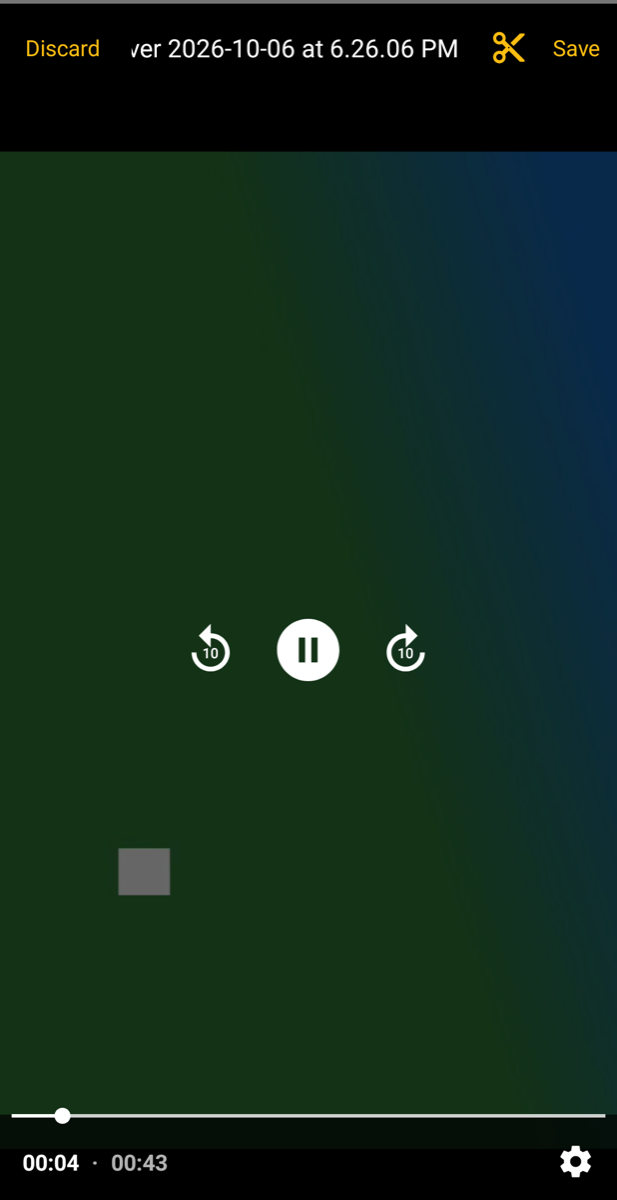
When you stop, Onform plays your Voice-over back. This works the same on iPhone, iPad and Android.
1. Watch it through. If you're not happy, tap **Discard**, then **Discard** again to confirm, and record it again.
2. To cut the start or end, tap the scissors and trim it.
3. To name it, tap the title at the top (Onform names it with the date and time) and type a new one.
4. Tap **Save**. If you didn't type a title, Onform asks you to **Enter Title**: type one and tap **Save**, or tap **Skip** to keep the date and time.
On Android
On newer iPhones and iPads, Onform also writes a transcript of what you said. Tap the speech-bubble button to see it. See [Transcripts of your voice-overs](/coaching/teach-and-share/transcription.md).
## Where your Voice-over goes
* **From a chat:** Onform sends the Voice-over into that chat, so your athlete gets it straight away.
* **From a Library (iPhone and iPad):** Onform saves the Voice-over next to the original video, then opens **Select Recipients**. Pick the athletes or chats to send it to, add a message if you like, then tap **Share With 1 Recipient** (the number matches how many you picked). Tap **Close** to keep it in the Library and send it later.
* **From a Library (Android):** Onform saves the Voice-over in the same workspace as the original video. Share it from there like any other video.
Don't want **Select Recipients** to open every time? On iPhone and iPad, open Onform's **Settings**, go to **Video Player** and turn on **Skip Voice-over Sharing Upon Save**.
## How many Voice-overs you can record
Some plans include a set number of Voice-overs in any 30 days. When you reach yours, Onform shows a message offering more Voice-overs with an upgrade, and you can record again as older Voice-overs move out of the 30-day window. Athletes who use Onform free through their coach can record up to 5 Voice-overs in any 30 days. See [onform.com/pricing](https://onform.com/pricing/) for what each plan includes.
## If something goes wrong
| What you see | What to do |
| -------------------------------------------------------------------------------------- | ----------------------------------------------------------------------------------------------------------------------------------------------------------------------------- |
| Your athlete hears only background noise | They've probably opened the original video. Ask them to look for the copy marked with a microphone: that's the Voice-over. |
| Your Voice-over has no sound (iPhone or iPad) | Record again and tap **Record Screen & Microphone** when asked. Also check microphone access is on for Onform in your iPhone or iPad **Settings**. |
| The video doesn't move in your Voice-over | Press play while you record. Without it, the Voice-over shows a still frame with your voice and drawings. |
| Recording paused when you turned your device | You can't rotate during a Voice-over. Turn your device back the way it was and tap **Resume**. |
| Your Voice-over failed to save (iPhone or iPad) | Make sure Onform is full screen on iPad and that your device has free storage, then record again. |
| You see two skeletons when you play a Voice-over back | The skeleton was on while you recorded, so it's part of the Voice-over. Turn the skeleton off while you watch it, or before you record. |
| Your drawings don't shrink with the videos in a comparison Voice-over (iPhone or iPad) | Open Onform's **Settings**, go to **Video Player** and turn on **Disable HD Aspect Ratio Voice-overs**, then record again. |
| You're told you've reached your Voice-over limit | You've used the Voice-overs your plan includes for the last 30 days. Wait for older ones to drop out of the window, or see [onform.com/pricing](https://onform.com/pricing/). |
Still stuck? Email with your device, the Onform version and a screenshot.
## Related
* [Compare two videos](/coaching/analyze/how-to-compare-videos.md)
* [Finding and Using the Drawing Toolbox](/coaching/analyze/finding-and-using-the-drawing-toolbox.md)
* [Transcripts of your voice-overs](/coaching/teach-and-share/transcription.md)
* [Share videos with one or more people](/coaching/teach-and-share/how-to-share-videos-to-one-or-multiple-people.md)
* [Quick start: run your own coaching business](https://github.com/Onform-Inc/onform-docs/tree/main/get-started/start-here/solo-coach.md)
---
# Agent Instructions
This documentation is published with GitBook. GitBook is the documentation platform designed so that both humans and AI agents can read, navigate, and reason over technical content effectively. Learn more at gitbook.com.
## Querying This Documentation
If you need additional information that is not directly available in this page, you can query the documentation by asking a question.
Perform an HTTP GET request on the following URL with the `ask` and `goal` query parameters:
```
GET https://help.onform.com/coaching/analyze/how-to-record-a-voiceover.md?ask=&goal=
```
`ask` is the immediate question: it should be specific, self-contained, and written in natural language.
`goal` is what the user is ultimately trying to achieve, the reason they need the answer. Sharing it helps GitBook give you a better, more relevant answer. A goal is most helpful when it describes the outcome the user wants rather than restating the question. For example, with `ask=how do I create an API token`, a goal like `automate deployments from our CI pipeline` lets GitBook tailor the answer to that use case.
The response will contain a direct answer to the question and relevant excerpts and sources from the documentation.
Use this mechanism when the answer is not explicitly present in the current page, you need clarification or additional context, or you want to retrieve related documentation sections.