> For the complete documentation index, see [llms.txt](https://help.onform.com/llms.txt). Markdown versions of documentation pages are available by appending `.md` to page URLs; this page is available as [Markdown](https://help.onform.com/coaching/record-and-import/features-of-the-video-library.md).
# Your Library
How your Onform Library works: Library - All Files, Reference Content and each workspace's Library, plus how to find, title, tag, star, trim, rotate, move, copy and delete videos.
Works on: iPhone, iPad, Android and web. Searching, trimming, rotating and merging are on iPhone and iPad only.
Every video, Voice-over, photo and PDF you record, import or are sent lives in a Library. Your videos are kept in the Onform cloud, so you see the same Library on every phone, tablet and computer you sign in to, and you don't have to dig through your camera roll to find a rep.
## Where your videos live
* **Each workspace has its own Library.** An athlete's workspace, a team or a family each keeps its own videos. Open the workspace and tap **Library**. Whether new videos there start private or shared depends on the workspace's setting; see [Library visibility and sharing options](/coaching/teach-and-share/library-visibility-and-sharing-options-default-private-or-default-shared.md).
* **Library - All Files** (on your Home screen) shows every file from all your libraries in one place. Videos you record or import without opening a workspace first land here too. At the top you'll see how many files are shared, how many are private and how many are still waiting to upload.
* **Reference Content** (on your Home screen) is your own private folder for drills, model videos and PDFs you want for Compare or to send again and again. Only you see what's in it until you share a file from it. You have one in your personal account and a separate one in each organization you belong to.
Videos are listed newest first, by the date they were filmed. An older video you import is filed under the day it was filmed, not the day you imported it, so scroll back or jump to that date to find it.
There are no folders inside a Library. To group videos, such as every rep from one session or one drill, give them the same tag and search for it.
## Find a video
{% tabs %}
{% tab title="iPhone and iPad" %}
* **Search:** tap the search bar at the top of the Library and type part of a title, a tag or a person's name. As you type, Onform also suggests filters such as **Starred**, **Voice-over**, **Private**, **Shared** and **Pending upload**.
* **Jump to a day:** start scrolling and tap **Jump to Date**.
* **Picking a video** to compare, or to add from another Library: the **Recents** and **Starred** tabs show the videos you're most likely to want.
{% endtab %}
{% tab title="Android and web" %}
* The Library shows your videos newest first. There's no search bar in the Library on Android or the web yet, so give videos clear titles and scroll to them.
{% endtab %}
{% endtabs %}
## Give a video a title and tags
A title makes a video easy to spot ("Back squat, week 3"), and tags let you find every video on the same theme ("serve", "block starts", "U12 Tuesday"). You can edit them on videos you added, or on any video in a workspace you manage.
{% tabs %}
{% tab title="iPhone and iPad" %}
1. In the Library, touch and hold the video.
2. Tap **Edit Title** or **Edit Tags**.
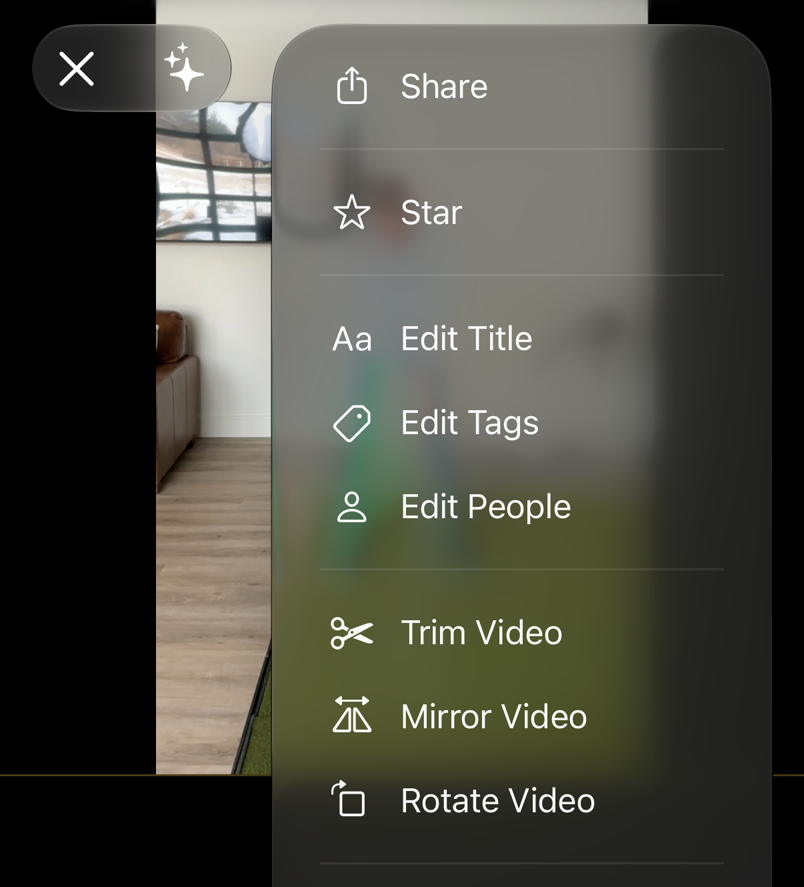
You'll find the same options in the **⋯** menu when the video is open. **Edit File Date** (when you touch and hold) changes the date a video is filed under.
To tag several videos at once, tap **Select**, pick them, then tap the **⋯** button (**More** on iPad) and choose **Edit Tags**.
{% endtab %}
{% tab title="Android and web" %}
1. In the Library, tap the three dots next to the video.
2. Tap **Edit Title** or **Edit Tags**.
To tag several videos at once, select them, tap the three dots at the top and choose **Edit Tags**.
{% endtab %}
{% endtabs %}
## Star a video
Star the videos you come back to often, like a model swing or a personal-best jump. Your stars are just for you.
{% tabs %}
{% tab title="iPhone and iPad" %}
* In the Library, tap the star in the corner of the video's thumbnail. Tap it again to remove the star.
* Or open the video, tap **⋯**, then **Star** (or **Unstar**).
To see your starred videos, type "starred" in the Library's search bar and tap **Starred**. Starred videos stay on your iPhone or iPad so you can watch them offline. See [Use Onform without a connection](https://github.com/Onform-Inc/onform-docs/tree/main/get-started/how-onform-works/working-offline-with-onform.md).
{% endtab %}
{% tab title="Android and web" %}
1. In the Library, tap the three dots next to the video.
2. Tap **Add to Starred**. Tap **Remove From Starred** to take it off.
{% endtab %}
{% endtabs %}
## Trim or rotate a video (iPhone and iPad)
Trimming and rotating are on iPhone and iPad only.
The **⋯** menu on a video also has **Mirror Video**, which flips it left to right.
On iPhone
**Trim:**
1. Open the video and tap **⋯**, then **Trim Video**.
2. Drag the ends of the strip to the part you want, or tap the times to type exact start and end points.
3. Tap **Save**, then choose **Over-write existing video** or **Save as new video**. If it isn't your video, Onform saves a new copy and leaves the original alone.
**Rotate** (for example, a video filmed sideways on an external camera):
1. Open the video and tap **⋯**, then **Rotate Video**.
2. Tap **Rotate Left** or **Rotate Right** until it's the right way up.
3. Tap **Save**. The rotated video replaces the original.
## Select several videos
{% tabs %}
{% tab title="iPhone and iPad" %}
1. In the Library, tap **Select**.
2. Tap each video you want, or tap **Select All**.
3. Use the buttons at the bottom: share, Compare (with two videos picked), the **⋯** button for more options, or delete.
{% endtab %}
{% tab title="Android and web" %}
1. In the Library, touch and hold a video, or tap the menu at the top and choose **Select**.
2. Tap each other video you want.
3. Use the buttons at the top: share, Compare (with two videos picked), the three dots for more options, or delete.
{% endtab %}
{% endtabs %}
## Merge videos into one
Merging joins several videos into one new video, for example to put three reps in a row or to string a warm-up and a drill together. It's on iPhone and iPad only.
1. In the Library, tap **Select**.
2. Tap the videos you want, **in the order you want them to play**. Onform joins them in the order you picked them.
3. Tap **Merge**. On iPhone it's the button with the two merging arrows in the bar at the bottom.
4. Wait while Onform joins them. If it needs to download videos first, you need a connection. You can tap the message to cancel.
When it's done, Onform saves the result as a new video called **Merged video** at the top of the Library, in the same workspace as the first video you picked. You can rename it like any other video.
Good to know:
* You need to pick at least two videos, and only videos can be merged. Photos and PDFs can't.
* Your original videos stay exactly as they were. Merging makes a new copy.
* The merged video is one plain video. Drawings you added in the player don't carry over into it. A Voice-over you include joins in like any other video, with its sound.
* The merged video has the same shape and size as the first video you picked.
* We don't know of a limit on how many videos or how long, but long videos take longer to join.
* If a video was recorded on another device and hasn't finished uploading, wait for it to finish and try again.
## Move or copy videos to another workspace
Recorded a rep in the wrong athlete's workspace, or in **Library - All Files**? Move it to the right one.
* **Move File** takes the video out of this Library and puts it in the workspace you choose. You can move videos you added.
* **Copy File** puts a copy in another workspace and keeps this one.
* **Duplicate File** makes a second copy in the same Library, for example to trim one and keep the full clip.
{% tabs %}
{% tab title="iPhone and iPad" %}
1. Touch and hold the video. For several, tap **Select**, pick them, then tap **⋯** (**More** on iPad).
2. Tap **Move File**, **Copy File** or **Duplicate File** (**Move Files**, **Copy Files** or **Duplicate Files** for several).
3. Pick the workspace.
{% endtab %}
{% tab title="Android and web" %}
1. Tap the three dots next to the video. For several, select them, then tap the three dots at the top.
2. Tap **Move File**, **Copy File** or **Duplicate File** (**Move Files**, **Copy Files** or **Duplicate Files** for several).
3. Pick the workspace.
{% endtab %}
{% endtabs %}
You need a connection to move or copy videos. If Onform asks you to upgrade, moving and copying need an active plan; see [onform.com/pricing](https://onform.com/pricing/). If someone shared a video with you and restricted sharing, you can't copy it. See [Stop others re-sharing your videos](/coaching/teach-and-share/the-restrict-sharing-option-explained.md).
## Delete a video, and get it back
{% tabs %}
{% tab title="iPhone and iPad" %}
**Delete:** touch and hold the video, tap **Delete**, then **Move to Recently Deleted**.
**Get it back:** tap the Library's name at the top of the screen, then **Recently Deleted**. Touch and hold the video and tap **Restore**.
{% endtab %}
{% tab title="Android and web" %}
**Delete:** tap the three dots next to the video, then **Delete**.
**Get it back:** tap the menu at the top of the Library, then **Recently Deleted**. Tap the three dots next to the video and tap **Restore**.
{% endtab %}
{% endtabs %}
What happens when you delete:
* A video you added goes to **Recently Deleted** for 30 days, then it's deleted for good. You can restore it any time before then.
* Anyone you shared it with can no longer see it. If you restore it, share it with them again.
* Deleting a video someone else shared with you only takes it out of your Library. It doesn't go to your **Recently Deleted**, so you can't restore it yourself: ask them to share it again.
* **Permanently Delete** (in **Recently Deleted**) can't be undone.
## If something goes wrong
| What you see | What to do |
| --------------------------------------------------------- | --------------------------------------------------------------------------------------------------------------------------------------------------- |
| A video you just imported isn't at the top | It's filed under the day it was filmed. Scroll back to that date, or use **Jump to Date** on iPhone and iPad. |
| You can't find videos you recorded for an athlete | Look in **Library - All Files**. If they're there, move them to the athlete's workspace. Next time, open the athlete's workspace before you record. |
| **Edit Title** or **Move File** isn't in the menu | You can only move videos you added, and only edit titles and tags on your own videos or in a workspace you manage. Use **Copy File** instead. |
| A video someone deleted has gone | Only the person who added it can restore it, within 30 days, from their **Recently Deleted**. |
| A video shows a cloud icon and doesn't open straight away | It's stored in the cloud and downloads when you tap it. You need a connection for that. |
## Related
* [Share videos with one or more people](/coaching/teach-and-share/how-to-share-videos-to-one-or-multiple-people.md)
* [Save or export videos](/coaching/teach-and-share/save-videos-to-your-device.md)
* [Library visibility and sharing options](/coaching/teach-and-share/library-visibility-and-sharing-options-default-private-or-default-shared.md)
* [Compare two videos](/coaching/analyze/how-to-compare-videos.md)
* [Record a Voice-over](/coaching/analyze/how-to-record-a-voiceover.md)
* [Use Onform without a connection](https://github.com/Onform-Inc/onform-docs/tree/main/get-started/how-onform-works/working-offline-with-onform.md)
* [What works on which app](https://github.com/Onform-Inc/onform-docs/tree/main/get-started/how-onform-works/what-works-on-which-app.md)
---
# Agent Instructions
This documentation is published with GitBook. GitBook is the documentation platform designed so that both humans and AI agents can read, navigate, and reason over technical content effectively. Learn more at gitbook.com.
## Querying This Documentation
If you need additional information that is not directly available in this page, you can query the documentation by asking a question.
Perform an HTTP GET request on the following URL with the `ask` and `goal` query parameters:
```
GET https://help.onform.com/coaching/record-and-import/features-of-the-video-library.md?ask=&goal=
```
`ask` is the immediate question: it should be specific, self-contained, and written in natural language.
`goal` is what the user is ultimately trying to achieve, the reason they need the answer. Sharing it helps GitBook give you a better, more relevant answer. A goal is most helpful when it describes the outcome the user wants rather than restating the question. For example, with `ask=how do I create an API token`, a goal like `automate deployments from our CI pipeline` lets GitBook tailor the answer to that use case.
The response will contain a direct answer to the question and relevant excerpts and sources from the documentation.
Use this mechanism when the answer is not explicitly present in the current page, you need clarification or additional context, or you want to retrieve related documentation sections.