> For the complete documentation index, see [llms.txt](https://help.onform.com/llms.txt). Markdown versions of documentation pages are available by appending `.md` to page URLs; this page is available as [Markdown](https://help.onform.com/coaching/teach-and-share/how-to-share-videos-to-one-or-multiple-people.md).
# Share videos with one or more people
Share one video or several with an athlete, a parent, a group or your whole team, see what they get and when they've watched it, and send a link to people who don't use Onform.
Works on: iPhone, iPad, Android and web. **Share To Other Apps** isn't in the web app.
Send a clip, a Voice-over or a whole set of reps to one athlete, a parent, a group or your whole team in one go. Each person gets the video in their chat with you and in the workspace's **Library**. There's no need to send a new invite each time you share.
## Before you start
* The people you share with need to be in one of your workspaces. If they aren't yet, see [Invite your athletes](/coaching/organize-your-athletes/invite-your-athletes.md). For someone who doesn't use Onform, such as a college coach, [send a link](#share-with-someone-outside-onform) instead.
* The video needs to finish uploading first. Until it does, you'll see a message that sharing will be available once the file finishes uploading.
* Videos you record or import are private until you share them, unless the workspace is set to **Files Are Default Shared**. See [Default private or default shared Libraries](/coaching/teach-and-share/library-visibility-and-sharing-options-default-private-or-default-shared.md).
## Share a video
{% tabs %}
{% tab title="iPhone and iPad" %}
1. Open the workspace's **Library** and touch and hold the video. (Or open the video and tap **Share** at the top.)
2. Tap **Share**. The **Select Recipients** screen lists the people and groups in this workspace.
3. Tap each person or group you want to send it to. You can pick as many as you like.
4. Tap **Next**.
5. Add a message if you like, for example "Watch your landing at 0:04", then tap **Share With 2 Recipients** (the number matches how many you picked).
{% endtab %}
{% tab title="Android and web" %}
1. Open the workspace's **Library** and tap the three dots next to the video.
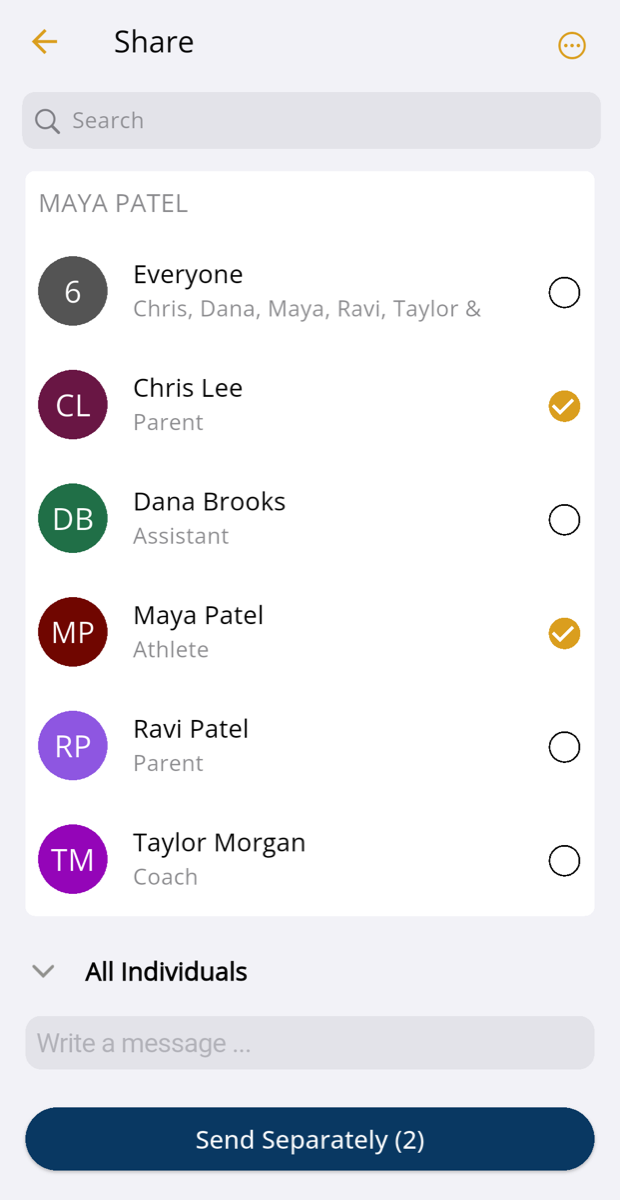
2. Tap **Share**. You'll see the people and groups in this workspace.
3. Tick each person or group you want to send it to. You can pick as many as you like.
4. Add a message if you like, for example "Watch your landing at 0:04".
5. Tap **Send**. When you've picked more than one, the button shows **Send Separately** and the number, because each person or group gets it in their own chat.
{% endtab %}
{% endtabs %}
{% hint style="info" %}
Sharing a Voice-over on a newer iPhone or iPad? Onform may fill in the message with a short **Feedback Summary** of what you said. Edit it as you like, or tick **Don't include the voice-over summary** to leave it out.
{% endhint %}
## Choose people or a group
The list shows groups first, then each person in the workspace.
* **A person**: the video goes to your private chat with them. Only you and that person see it.
* **A group**: the video goes to that group's chat, and everyone in the group sees it and gets a notification. In a team, you can make groups such as "Pitchers", "Sprinters" or "Staff": tap **+** next to **Groups** in the team.
* **Everyone**: every workspace has an **Everyone** group that includes all its members, and Onform keeps it up to date for you. In a team, that means every athlete, **every parent** and your staff. Use it for team-wide clips like a drill demo, and share one athlete's feedback with just that athlete and their parents.
To send to someone in one of your other workspaces, tap **Show Everyone** at the bottom of the list on iPhone and iPad, or scroll down on Android and web, and pick them there. You can also type a name in the search bar.
On Android
## Share several videos at once
{% tabs %}
{% tab title="iPhone and iPad" %}
1. In the **Library**, tap **Select**.
2. Tap each video you want to send.
3. Tap the share button (on iPad it says **Share**), then pick people and send as above.
{% endtab %}
{% tab title="Android and web" %}
1. In the **Library**, touch and hold a video to start selecting, or tap the menu at the top and choose **Select**.
2. Tap each other video you want to send.
3. Tap the share icon at the top, then pick people and send as above.
{% endtab %}
{% endtabs %}
## What the people you share with see
* The video appears in their chat with you (or in the group's chat) with your message, and in the workspace's **Library**.
* They get a notification, if they've turned notifications on.
* They can watch it as often as they like, and can share it on with others unless you restrict it. To stop that, see [Stop others re-sharing your videos](/coaching/teach-and-share/the-restrict-sharing-option-explained.md).
## See when someone has watched it
When someone opens a video you shared, you get a notification that they watched it. It's also listed in **Recent Activity** on your Home screen, where the **Watched** filter shows just those.
## Share with someone outside Onform
For a college coach, a physio or a family member who doesn't use Onform, send a link or the video file instead.
{% tabs %}
{% tab title="iPhone and iPad" %}
1. Touch and hold the video (or select several) and tap **Share**.
2. On **Select Recipients**, tap the **…** button at the top right.
3. Choose one of these:
* **Copy Link**: copies a link to each video. Paste it into a text, email or any app.
* **Share Via Email**: opens your email app with the links (and each video's title) ready to send.
* **Share To Other Apps**: downloads the video file and opens your phone's share options, so you can send the file itself by AirDrop, WhatsApp, Messages and so on.
{% endtab %}
{% tab title="Android and web" %}
1. Tap the three dots next to the video.
2. Choose one of these:
* **Copy Link**: copies a link to the video. Paste it into a text, email or any app.
* **Share via email**: opens your email app with the link ready to send.
* **Share to other apps** (Android only): downloads the video file and opens your phone's share options.
For several videos, select them and tap the menu at the top for the same options. They're also on the **Share** screen, under the button at the top right.
{% endtab %}
{% endtabs %}
The person you send a link to can watch the video in their web browser, without an Onform account. Anyone who has the link can watch it, so only send it to people you mean to. If they have Onform installed, the link may open in the app instead. Onform doesn't send these messages itself: they go from your own email or messaging app, so check your Sent folder if someone says they didn't get one.
## If something goes wrong
| What you see | What to do |
| ----------------------------------------------------------------------------------------------------------- | ------------------------------------------------------------------------------------------------------------------------------------------------------------------------------------------------------------------------------------------------------------------------------------------------------------------------------------------------------------------------------------------------------------------- |
| The person isn't in the list | They need to be in one of your workspaces. Search for their name, or tap **Show Everyone** (iPhone and iPad). If they've never joined, [invite them](/coaching/organize-your-athletes/invite-your-athletes.md), or send them a link instead. |
| **Share** isn't there, or you see a message that sharing will be available once the file finishes uploading | Keep Onform open with a good connection until the video finishes uploading, then try again. |
| "Sharing this video has been restricted" | The video's owner has stopped it being shared on. Ask them to share it, or to turn sharing back on. |
| Your athlete says they can't see a video you shared | Check you shared it in the workspace they're in, not a different one with the same athlete. Then check they're signed in to the right account and, if you coach under an organization, have switched to it in the account switcher. See [Sign-in methods and more than one account](https://github.com/Onform-Inc/onform-docs/tree/main/account/sign-in-and-accounts/sign-in-methods-and-more-than-one-account.md). |
| An athlete left and rejoined, and their old videos are gone | Share those videos with them again. |
| The whole team saw a clip meant for one athlete | You probably picked **Everyone**. Next time, pick the athlete and their parents by name. |
## Related
* [Default private or default shared Libraries](/coaching/teach-and-share/library-visibility-and-sharing-options-default-private-or-default-shared.md)
* [Stop others re-sharing your videos](/coaching/teach-and-share/the-restrict-sharing-option-explained.md)
* [Invite your athletes](/coaching/organize-your-athletes/invite-your-athletes.md)
* [How to record a voice-over](/coaching/analyze/how-to-record-a-voiceover.md)
* [Share recruiting clips](https://github.com/Onform-Inc/onform-docs/tree/main/programs/recruiting/share-recruiting-clips.md)
* [Keep parents informed](https://github.com/Onform-Inc/onform-docs/tree/main/programs/athletes-and-parents-in-your-program/keep-parents-informed.md)
* [Send a video to your coach](https://github.com/Onform-Inc/onform-docs/tree/main/athletes/practice-and-improve/how-to-athlete-share-to-coach.md) (the athlete's side)
---
# Agent Instructions
This documentation is published with GitBook. GitBook is the documentation platform designed so that both humans and AI agents can read, navigate, and reason over technical content effectively. Learn more at gitbook.com.
## Querying This Documentation
If you need additional information that is not directly available in this page, you can query the documentation by asking a question.
Perform an HTTP GET request on the following URL with the `ask` and `goal` query parameters:
```
GET https://help.onform.com/coaching/teach-and-share/how-to-share-videos-to-one-or-multiple-people.md?ask=&goal=
```
`ask` is the immediate question: it should be specific, self-contained, and written in natural language.
`goal` is what the user is ultimately trying to achieve, the reason they need the answer. Sharing it helps GitBook give you a better, more relevant answer. A goal is most helpful when it describes the outcome the user wants rather than restating the question. For example, with `ask=how do I create an API token`, a goal like `automate deployments from our CI pipeline` lets GitBook tailor the answer to that use case.
The response will contain a direct answer to the question and relevant excerpts and sources from the documentation.
Use this mechanism when the answer is not explicitly present in the current page, you need clarification or additional context, or you want to retrieve related documentation sections.