> For the complete documentation index, see [llms.txt](https://help.onform.com/llms.txt). Markdown versions of documentation pages are available by appending `.md` to page URLs; this page is available as [Markdown](https://help.onform.com/help/troubleshooting/why-are-my-uploads-stuck.md).
# Why are my uploads stuck?
Videos stuck on pending or not reaching your coach or athletes? Check the connection, mobile data setting and app version, most common cause first.
Works on: iPhone, iPad, Android and web.
Every video you record or import is saved on your device first, then uploads to the Onform cloud. Until it finishes uploading, nobody else can see it and you can't share it. If a video seems stuck, start with the first section and work down.
## How to tell what's still uploading
{% tabs %}
{% tab title="iPhone and iPad" %}
* At the top of your Library, the file count shows **pending upload** when videos are still waiting, for example "Files: 12 private, 3 pending upload". Open **Library - All Files** to see the count across all your libraries, and tap **pending upload** to see just those videos.
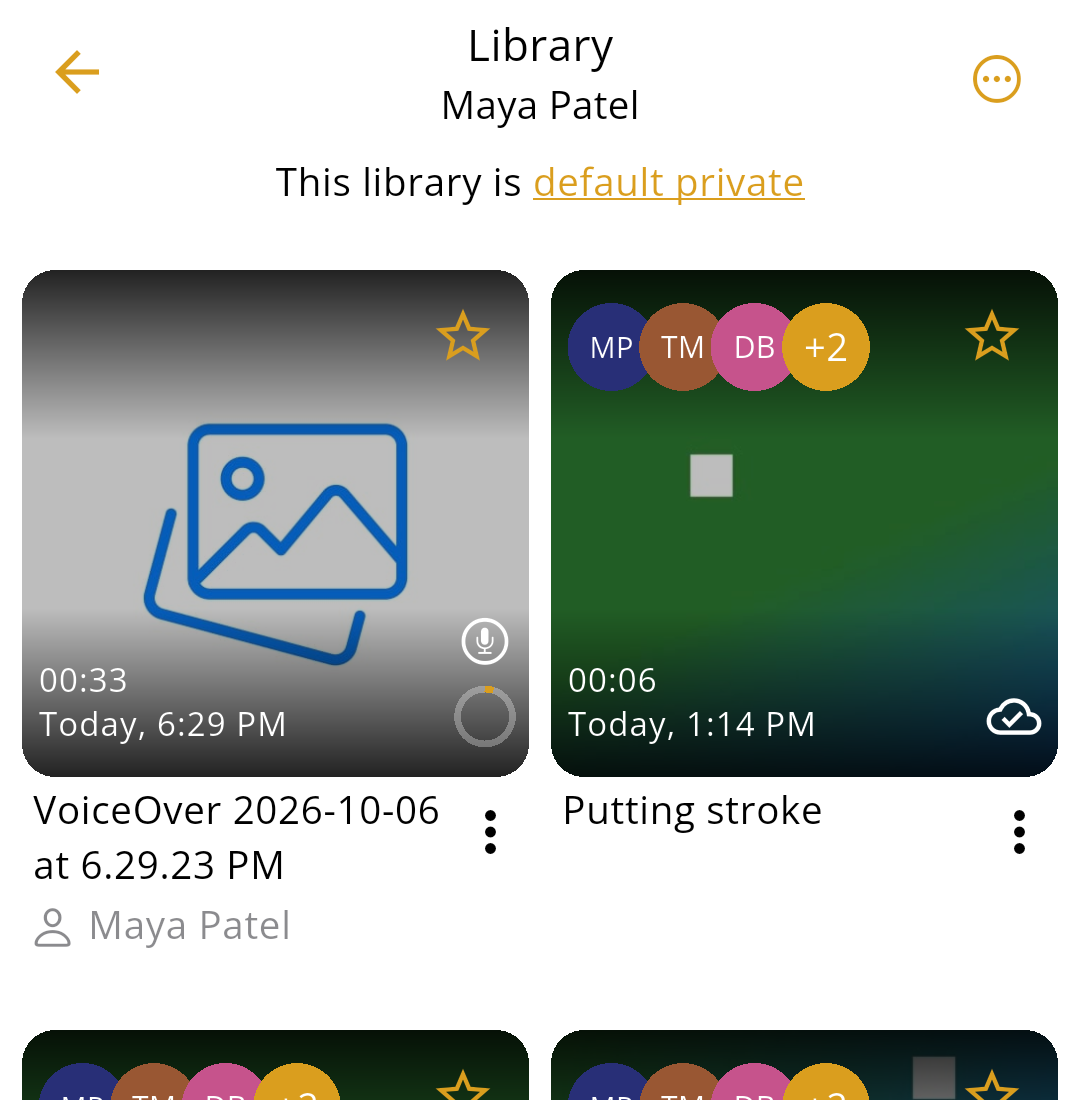
* A ring on a thumbnail shows upload progress.
* Once a video has uploaded, its thumbnail shows a cloud icon: a cloud with a check mark means it's on this device and in the cloud, and a cloud with a down arrow means it's only in the cloud.
* In a hurry for one video? Touch and hold its thumbnail and tap **Prioritize Upload** to move it to the front of the queue.
{% endtab %}
{% tab title="Android and web" %}
* A ring on a thumbnail shows upload progress.
* A red warning icon means the upload failed. Tap the icon to try again, or tap the three dots next to the video and tap **Upload to cloud**.
* A cloud with a check mark means the video is on your phone and in the cloud.
On Android
{% endtab %}
{% endtabs %}
## 1. The upload is still going, or it's paused
This is the most common cause. Videos can be large, especially long clips and slow-motion (high frame rate) video, and they only upload while Onform has a connection.
1. Use the phone or tablet that **recorded or imported** the video. The upload can only happen from that device.
2. Connect to good Wi-Fi or mobile data, and turn off Airplane Mode.
3. Open Onform and leave it open on screen for 10 to 15 minutes. Close other apps you're not using.
4. Check the Library again. On iPhone and iPad, if it says **Uploads paused as device is offline**, Onform can't reach the internet: try another Wi-Fi network or mobile data.
On the web app, keep the browser tab open until the upload finishes. The web app skips files bigger than 500 MB.
If you use a VPN, turn it off and try again. Some VPNs and work or school networks block uploads.
## 2. You're on mobile data and uploads over mobile data are off
When you're not on Wi-Fi, Onform only uploads over mobile data if this setting is on. On iPhone and iPad, the Library says **Uploads paused as cellular backup is disabled**.
{% tabs %}
{% tab title="iPhone and iPad" %}
1. On the Home screen, tap your profile icon, then the settings icon (the gear at the top).
2. Under **Cloud Sync**, turn on **Backup Files Over Cellular (If Available)**.
3. Close the settings and give the upload a few minutes.
{% endtab %}
{% tab title="Android and web" %}
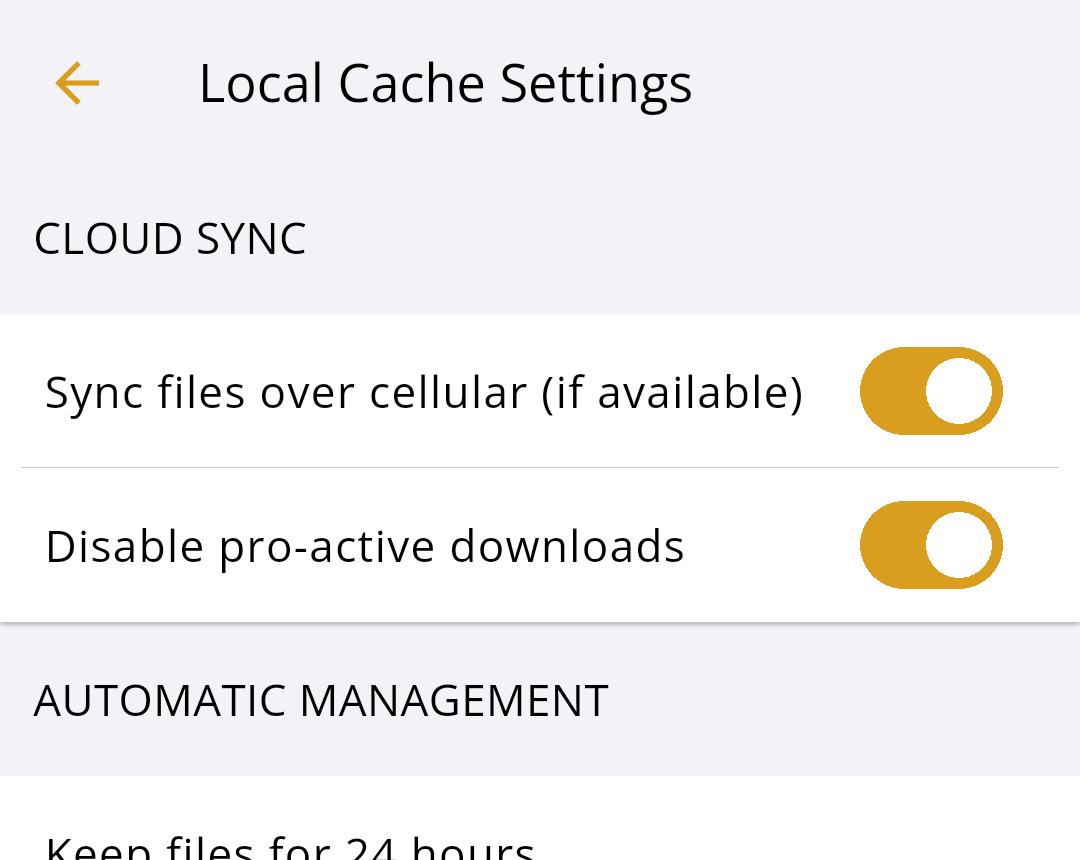
1. On the Home screen, tap your profile icon, then **Local Cache Settings**.
2. Turn on **Sync files over cellular (if available)**.
On Android
The web app uses whatever connection your computer has.
{% endtab %}
{% endtabs %}
Uploading over mobile data uses your data plan, and slow-motion clips can be large.
## 3. Close Onform, restart your device and try again
1. Close Onform completely. See [Close and reopen Onform](/help/troubleshooting/how-do-i-completely-close-my-app.md).
2. Restart your phone or tablet.
3. Open Onform on a good connection and leave it open for a few minutes. Watch whether the progress ring moves.
## 4. Update Onform
Upload fixes come in app updates. Update Onform in the App Store or Google Play on every device you use, then open the app again. To check which version you have, see [Find your app version](/help/troubleshooting/how-to-find-your-app-version.md).
## 5. Still stuck on iPhone or iPad: change how uploads run
Try these one at a time.
1. On the Home screen, tap your profile icon, then the settings icon.
2. Under **Cloud Sync**, turn on **Serialize Uploads**. This uploads one video at a time instead of several at once, which helps on slow or patchy connections.
3. If that doesn't help, also turn on **Disable Background Uploads**. Uploads then only run while Onform is open, so keep it open on screen until they finish.
4. Close Onform completely and open it again so the change takes effect.
## The video was recorded on someone else's device
If your coach or athlete sent you a video that won't open, it may still be uploading from their phone or tablet. On Android and web you may see "The file cannot be opened because it has not finished uploading to the cloud from the device it was recorded on". Ask them to open Onform on that device on a good connection and leave it open until the upload finishes.
{% hint style="danger" %}
**Don't delete the app while videos are waiting to upload.** Videos that haven't uploaded yet are only on that device. If you delete Onform, they're lost. Wait until no videos are pending first.
{% endhint %}
## Still stuck?
Email from the email you sign in with, and include:
* The device that recorded the videos (for example iPhone 15 or a Samsung Galaxy tablet) and your Onform version ([how to find it](/help/troubleshooting/how-to-find-your-app-version.md))
* Roughly how many videos are stuck, and when you recorded or imported them
* Whether you're on Wi-Fi or mobile data, and whether you use a VPN
* A screenshot of the Library showing the stuck videos
We may ask you to send your app's logs. See [Contact support](/help/contact-us/contact-support.md) for how.
## Related
* [Use Onform without a connection](https://github.com/Onform-Inc/onform-docs/tree/main/get-started/how-onform-works/working-offline-with-onform.md)
* [Free up storage space](/help/troubleshooting/how-to-manage-storage-space.md)
* [Import videos](https://github.com/Onform-Inc/onform-docs/tree/main/coaching/record-and-import/import-videos.md)
* [Contact support](/help/contact-us/contact-support.md)
---
# Agent Instructions
This documentation is published with GitBook. GitBook is the documentation platform designed so that both humans and AI agents can read, navigate, and reason over technical content effectively. Learn more at gitbook.com.
## Querying This Documentation
If you need additional information that is not directly available in this page, you can query the documentation by asking a question.
Perform an HTTP GET request on the following URL with the `ask` and `goal` query parameters:
```
GET https://help.onform.com/help/troubleshooting/why-are-my-uploads-stuck.md?ask=&goal=
```
`ask` is the immediate question: it should be specific, self-contained, and written in natural language.
`goal` is what the user is ultimately trying to achieve, the reason they need the answer. Sharing it helps GitBook give you a better, more relevant answer. A goal is most helpful when it describes the outcome the user wants rather than restating the question. For example, with `ask=how do I create an API token`, a goal like `automate deployments from our CI pipeline` lets GitBook tailor the answer to that use case.
The response will contain a direct answer to the question and relevant excerpts and sources from the documentation.
Use this mechanism when the answer is not explicitly present in the current page, you need clarification or additional context, or you want to retrieve related documentation sections.