> For the complete documentation index, see [llms.txt](https://help.onform.com/llms.txt). Markdown versions of documentation pages are available by appending `.md` to page URLs; this page is available as [Markdown](https://help.onform.com/how-onform-works/safe-sport-compliance-with-onform.md).
# Safeguarding and SafeSport with Onform
How chats, groups, sharing and Library settings work in Onform, and how to use them so a parent or another adult is included when you coach young athletes.
Works on: iPhone, iPad, Android and web.
Many clubs and governing bodies, including those that follow SafeSport, ask coaches to include a parent or another adult when they message young athletes. Onform doesn't decide that for you, but it gives you the tools to do it. **Your organization's own policy comes first**: check it, then use the habits below.
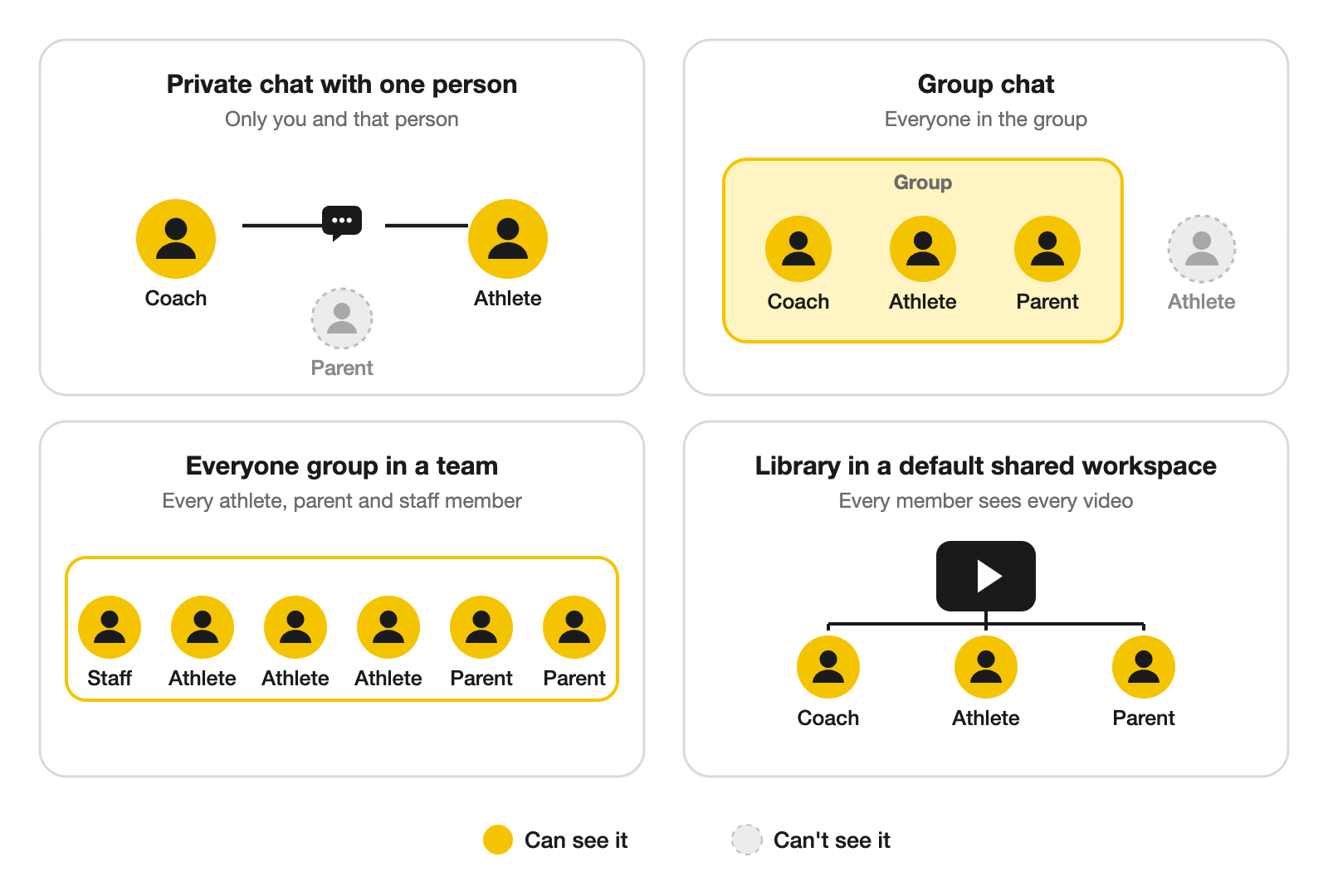
## Who sees what
| Where you send it | Who sees it |
| --------------------------------------- | ------------------------------------------------------------------------------------------------------------ |
| **Your private chat with one person** | Only you and that person. Nobody else in the workspace, including parents, sees it. |
| **A group** | Everyone in the group. |
| **Everyone** in a team | Every athlete, every parent and all staff in the team. |
| **Sharing a video with several people** | Each person gets it in their own chat with you. They see the video, not each other's conversations with you. |
| **A default shared Library** | Everyone in the workspace sees every video in it, including every parent in a team. |
Because a private chat is only ever between two people, a parent can't see your private chat with their child. To include a parent, use a group that has them in it.
## Good habits when you coach young athletes
1. **Invite at least one parent to each young athlete's workspace.** Parents use Onform for free. See [Keep parents informed](https://github.com/Onform-Inc/onform-docs/tree/main/programs/athletes-and-parents-in-your-program/keep-parents-informed.md).
2. **Message a young athlete in a group that includes their parent**, not in your private chat. To make one, tap **+** next to **Groups**, pick the athlete and their parents, name the group and tap **Create Group**.
3. **Share lessons with the athlete and their parent together.** Pick both when you share a video.
4. **Keep youth teams default private**, so one family's clips aren't seen by every other family. See [Default private or default shared Libraries](https://github.com/Onform-Inc/onform-docs/tree/main/coaching/teach-and-share/library-visibility-and-sharing-options-default-private-or-default-shared.md).
5. **Save Everyone for team-wide things**, like a schedule change or a drill demo.
6. **Restrict sharing on clips of young athletes** you don't want passed on. See [Stop others re-sharing your videos](https://github.com/Onform-Inc/onform-docs/tree/main/coaching/teach-and-share/the-restrict-sharing-option-explained.md).
## Deleted messages
Anyone can delete a message they sent. Others in the chat then see **This message was deleted**. If your organization needs you to keep a record of your messages with athletes, check with them how they'd like you to do that.
## Related
* [Keep parents informed](https://github.com/Onform-Inc/onform-docs/tree/main/programs/athletes-and-parents-in-your-program/keep-parents-informed.md)
* [Share videos with one or more people](https://github.com/Onform-Inc/onform-docs/tree/main/coaching/teach-and-share/how-to-share-videos-to-one-or-multiple-people.md)
* [Add another coach to a workspace](https://github.com/Onform-Inc/onform-docs/tree/main/coaching/organize-your-athletes/how-to-add-a-parent-and-or-coach-to-a-workspace.md)
---
# Agent Instructions
This documentation is published with GitBook. GitBook is the documentation platform designed so that both humans and AI agents can read, navigate, and reason over technical content effectively. Learn more at gitbook.com.
## Querying This Documentation
If you need additional information that is not directly available in this page, you can query the documentation by asking a question.
Perform an HTTP GET request on the following URL with the `ask` and `goal` query parameters:
```
GET https://help.onform.com/how-onform-works/safe-sport-compliance-with-onform.md?ask=&goal=
```
`ask` is the immediate question: it should be specific, self-contained, and written in natural language.
`goal` is what the user is ultimately trying to achieve, the reason they need the answer. Sharing it helps GitBook give you a better, more relevant answer. A goal is most helpful when it describes the outcome the user wants rather than restating the question. For example, with `ask=how do I create an API token`, a goal like `automate deployments from our CI pipeline` lets GitBook tailor the answer to that use case.
The response will contain a direct answer to the question and relevant excerpts and sources from the documentation.
Use this mechanism when the answer is not explicitly present in the current page, you need clarification or additional context, or you want to retrieve related documentation sections.