> For the complete documentation index, see [llms.txt](https://help.onform.com/llms.txt). Markdown versions of documentation pages are available by appending `.md` to page URLs; this page is available as [Markdown](https://help.onform.com/programs/teams-and-rosters/organizations-and-personal-account.md).
# Switch between your organization and your Personal Account
Switch between your organization and your Personal Account, see what lives where, and find athletes, coaches or videos that seem to be missing.
Works on: iPhone, iPad, Android and web. Moving data from your Personal Account into an organization is on iPhone and iPad only.
If you belong to an organization (an academy, club, school or team), Onform has two sides: the **organization** and your **Personal Account**. Each side has its own athletes, teams, Collections and videos, and you see one side at a time. If something seems to be missing, it's usually on the other side.
## Switch sides
{% tabs %}
{% tab title="iPhone and iPad" %}
1. On the Home screen, find the account switcher at the bottom. It shows **Personal Account** or your organization's name and logo.
2. Tap it.
3. Under **Switch To**, choose your organization, or **My Personal Account**.
{% endtab %}
{% tab title="Android and web" %}
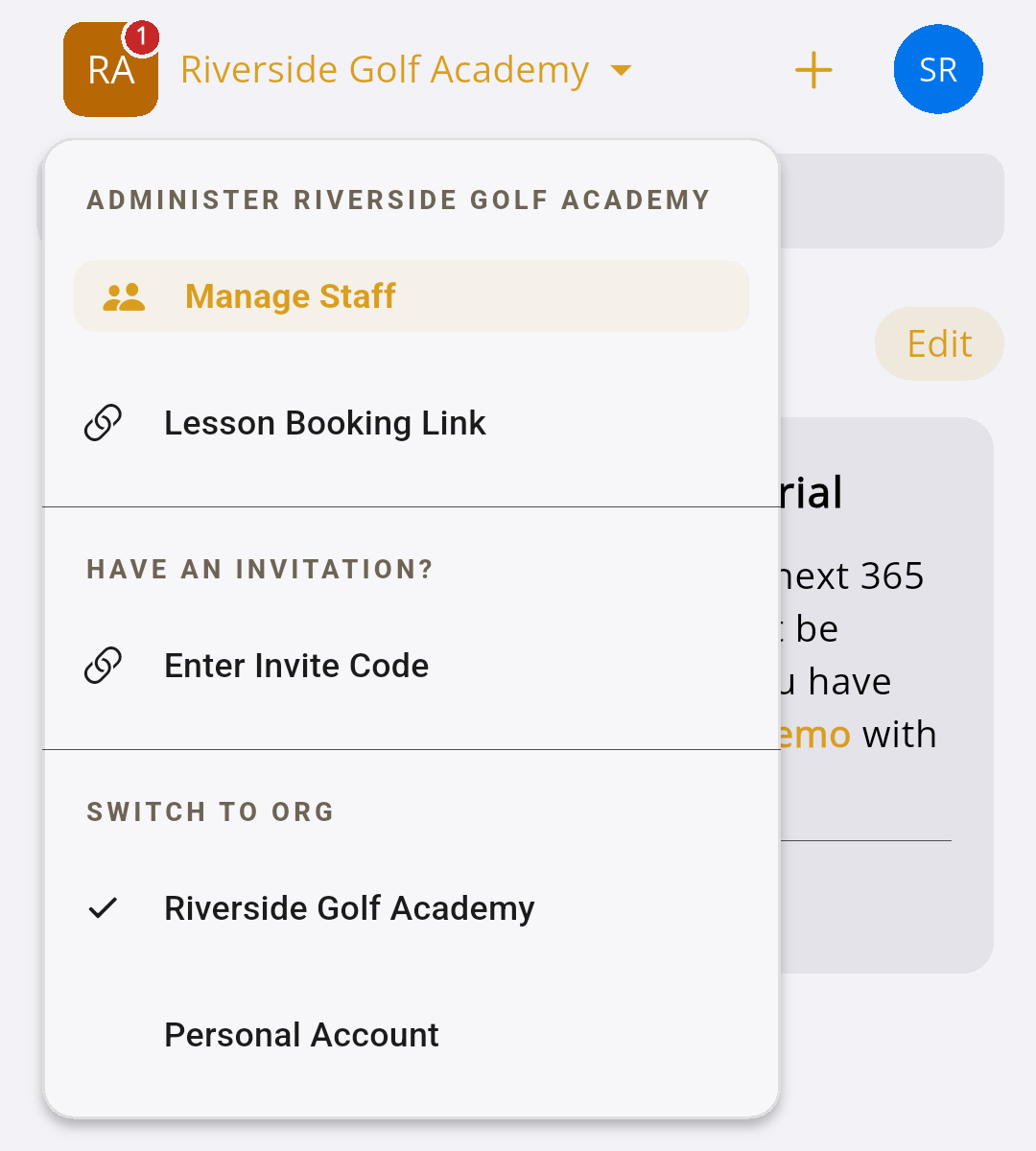
1. On the Home screen, find the account switcher at the top. It shows **Personal Account** or your organization's name.
2. Tap it.
3. Under **SWITCH TO ORG**, choose your organization or **Personal Account**.
On Android
{% endtab %}
{% endtabs %}
Onform remembers where you were, so most people who work in an organization only switch once.
## What lives where
| | Your organization | Your Personal Account |
| ------------------------- | --------------------------------------------------------------- | ----------------------------------------------------------------------------------- |
| **For** | Your program: its staff, athletes, teams and Collections | Coaching outside the organization, such as private lessons or your own child's team |
| **Workspaces and videos** | The program's athletes and teams | Only the ones you created or joined there |
| **Who pays** | The organization, through your coaching seat | You, with your own plan if you coach there |
| **Admin tools** | **Manage Staff** or **Manage Organization**, if you're an admin | None |
| **Calendar** | Available | Not available: switch to an organization to use it |
Athletes and parents: your coach's workspace is in your coach's organization. Switch to it to see your coach, your lessons and your free access.
## Can't find an athlete, a coach or a video?
1. **Check the other side.** Switch between your organization and your Personal Account and look again.
2. **Check you're signed in to the right account.** If you sign in with Apple on one device and Google on another, you may have two separate Onform accounts. Sign in the way you did when you joined. See [Sign-in methods and more than one account](https://github.com/Onform-Inc/onform-docs/tree/main/account/sign-in-and-accounts/sign-in-methods-and-more-than-one-account.md).
3. **Coaches: check your access.** Some organizations only let staff work with the athletes they've been given. Search for the athlete and tap **Request access**. See [Access and access requests](/programs/staff-seats-and-access/access-and-access-requests.md).
4. **Close Onform completely and open it again.** After your organization is set up or changed, this makes sure you see the latest.
Still missing? Email with the athlete's or workspace's name and the email you sign in with.
## Join another organization
You can belong to more than one organization, plus your Personal Account. To join one, you need an invite code from it. Codes are 5 characters, case-sensitive and work once.
1. On the Home screen, tap the account switcher.
2. Tap **Enter Invite Code**.
3. Enter the code and confirm you're joining.
The new organization then appears in your account switcher. If you were invited as a coach, see [Quick start: coach in your program](https://github.com/Onform-Inc/onform-docs/tree/main/get-started/start-here/staff-coach.md).
## Move your Personal Account data into your organization
If you coached athletes in your Personal Account before your organization was set up, you can move them, with their videos and Collections, into the organization (iPhone and iPad):
* **Everything at once:** switch to **Personal Account**, tap the account switcher, then tap **Move My Personal Account Data To Organization**. Choose your organization and the workspaces to move, tap **Next**, then **Yes, let's do this!** Keep Onform open until it finishes.
* **One athlete or team:** in your Personal Account, touch and hold the workspace on Home and tap **Move Workspace To An Organization**.
Only workspaces you're an admin of can be moved, and once they're in the organization, its admins manage them. For the full steps, see [Set up your organization](/programs/set-up-your-organization/set-up-your-organization.md#move-your-personal-account-data-in).
Want to keep your own coaching business separate? Leave those athletes in your Personal Account. You'll need your own plan to coach there.
## Related
* [Set up your organization](/programs/set-up-your-organization/set-up-your-organization.md)
* [Staff, seats and roles](/programs/staff-seats-and-access/staff-seats-and-roles.md)
* [Access and access requests](/programs/staff-seats-and-access/access-and-access-requests.md)
* [Why am I asked to pay?](https://github.com/Onform-Inc/onform-docs/tree/main/athletes/join-your-coach/why-am-i-asked-to-pay.md)
* [Join your coach with an invite code](https://github.com/Onform-Inc/onform-docs/tree/main/athletes/join-your-coach/join-your-coach-with-an-invite-code.md)
* [Sign-in methods and more than one account](https://github.com/Onform-Inc/onform-docs/tree/main/account/sign-in-and-accounts/sign-in-methods-and-more-than-one-account.md)
---
# Agent Instructions
This documentation is published with GitBook. GitBook is the documentation platform designed so that both humans and AI agents can read, navigate, and reason over technical content effectively. Learn more at gitbook.com.
## Querying This Documentation
If you need additional information that is not directly available in this page, you can query the documentation by asking a question.
Perform an HTTP GET request on the following URL with the `ask` and `goal` query parameters:
```
GET https://help.onform.com/programs/teams-and-rosters/organizations-and-personal-account.md?ask=&goal=
```
`ask` is the immediate question: it should be specific, self-contained, and written in natural language.
`goal` is what the user is ultimately trying to achieve, the reason they need the answer. Sharing it helps GitBook give you a better, more relevant answer. A goal is most helpful when it describes the outcome the user wants rather than restating the question. For example, with `ask=how do I create an API token`, a goal like `automate deployments from our CI pipeline` lets GitBook tailor the answer to that use case.
The response will contain a direct answer to the question and relevant excerpts and sources from the documentation.
Use this mechanism when the answer is not explicitly present in the current page, you need clarification or additional context, or you want to retrieve related documentation sections.