> For the complete documentation index, see [llms.txt](https://help.onform.com/llms.txt). Markdown versions of documentation pages are available by appending `.md` to page URLs; this page is available as [Markdown](https://help.onform.com/programs/teams-and-rosters/when-to-use-individuals-teams-or-collections-to-stay-organized.md).
# One-on-one, team or Collection: which to use
When to use a one-on-one workspace, a team or a Collection, and how to create, edit and share Collections with your staff.
Works on: iPhone, iPad, Android and web. **Broadcast Message** and adding tags to a Collection are on iPhone and iPad only.
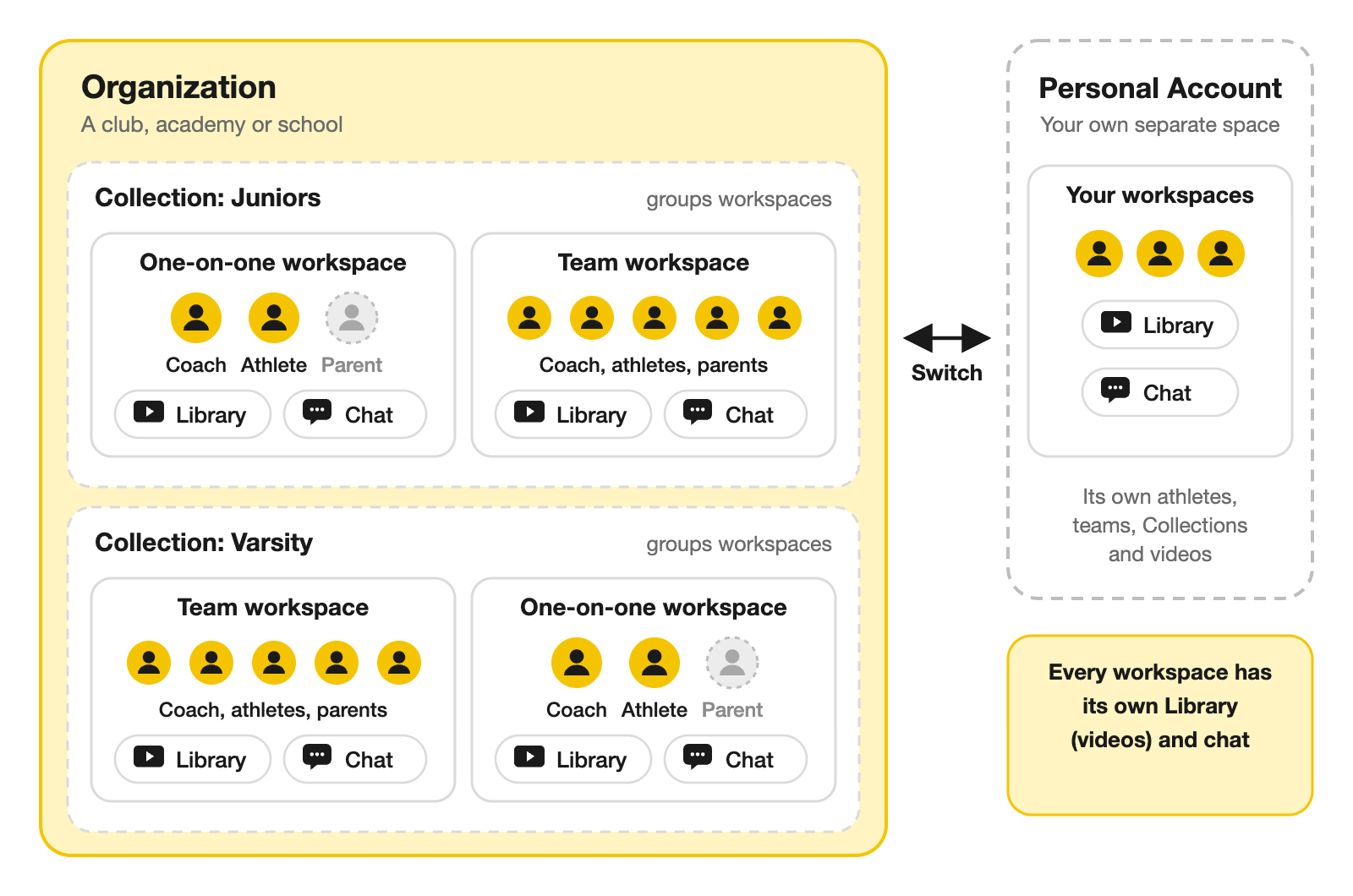
Onform gives you three ways to organize the people you coach. **One-on-one workspaces** and **teams** are where the coaching happens: videos, Voice-over lessons and chat. **Collections** are groups of those workspaces on your Home screen, like folders, so the right athletes are one tap away.
## The short answer
| Use a… | When | For example |
| ------------------------ | ----------------------------------------------------------------------------------------------------- | ---------------------------------------------------------------- |
| **One-on-one workspace** | You coach one athlete, even if parents or other coaches help | A golf student, a private pitching client, a tennis junior |
| **Team** | A roster trains together and should see who's on it | A U12 soccer team, a varsity track squad, a club cricket side |
| **Collection** | You want to group workspaces, message them all at once, or give a coach access to a group of athletes | "Juniors", "Tuesday clinic", "Varsity pitchers", "Past students" |
## One-on-one workspaces
Most coaching happens here. The workspace is named after the athlete and holds their Library and your chat. You can add their parents, and other coaches such as a strength coach or physio, so everyone helping that athlete works in one place.
Use one-on-one workspaces even for athletes who train in a group, if each family should only see their own child. You can still put them in a Collection to keep them together on Home.
## Teams
A team workspace has a roster: everyone on the team sees who else is in it. Use it when the group really is a team:
* **Groups** inside a team, such as pitchers, sprinters or bowlers, let you message and share with a few people at once.
* **Private by default:** in a default private team, a clip you share with one athlete isn't seen by the rest. See [Default private or default shared Libraries](https://github.com/Onform-Inc/onform-docs/tree/main/coaching/teach-and-share/library-visibility-and-sharing-options-default-private-or-default-shared.md).
To create either kind, see [Workspaces: one-on-one and teams](https://github.com/Onform-Inc/onform-docs/tree/main/coaching/organize-your-athletes/creating-teams-individuals---working-with-workspaces.md).
## Collections
A Collection is a named group of workspaces. It holds no videos or messages of its own: it just gathers one-on-one workspaces and teams under one heading on your Home screen.
* **A workspace can be in more than one Collection.** A softball player could be in "14U" and in "Catchers".
* **Your athletes don't see your Collections.** They're for you and, in an organization, the staff you share them with.
* **Two Collections are made for you:** **All Individuals** and **All Teams**. Onform keeps them up to date, so you can't edit or delete them, but you can hide them.
* **Message everyone at once (iPhone and iPad):** tap the three dots next to a Collection's name, then **Broadcast Message**. Each person gets it in their own private chat with you, and replies come back privately. It reaches people who have joined, not people whose invite is still pending.
### Create a Collection
{% tabs %}
{% tab title="iPhone and iPad" %}
1. On the Home screen, tap **Edit**.
2. Tap **Create New Collection**.
3. Enter a name, select the athletes and teams to include, and tap **Save**.
4. In an organization, **Manage Access** opens next: tap **Add Staff** to share it with coaches now, or **Skip**.
{% endtab %}
{% tab title="Android and web" %}
1. On the Home screen, tap **Edit**.
2. Tap **Add New Collection**.
3. Enter a name, select the athletes and teams to include, and save.
{% endtab %}
{% endtabs %}
The new Collection appears on Home.
### Edit a Collection
1. On Home, tap the three dots next to the Collection's name.
2. Tap **Edit Collection**.
3. Change the name, tap **Select From Existing Workspaces** to add athletes and teams, or select workspaces and tap **Remove**. You can also add a new athlete or team straight into it.
On iPhone and iPad you can also start from the athlete: touch and hold their workspace on Home and tap **Edit Collections Containing Workspace**.
### Share a Collection with your staff (organizations)
In an organization, sharing a Collection is the quickest way to connect a coach to a group of athletes. Every coach it's shared with works with every athlete and team in it, including ones added later.
1. On Home, tap the three dots next to the Collection's name, then **Edit Collection**.
2. Under **Staff Access**, tap **Share With Staff Members** (or **Manage Staff Access** if it's already shared).
3. Tap **Add Staff**, pick the coaches and save.
Only the coach who created a shared Collection, or an organization admin, can edit it. For more on who sees what, see [Access and access requests](/programs/staff-seats-and-access/access-and-access-requests.md).
### Hide, delete or leave a Collection
Tap the three dots next to the Collection's name:
* **Hide Collection** takes it off your Home screen. To bring it back, tap **Edit** on Home and tap **Unhide** next to it. On the **Edit** screen you can also drag Collections to reorder them.
* **Delete Collection** removes the grouping only. The athletes, teams and videos in it aren't touched.
* **Leave Collection** (for a Collection someone shared with you) removes you from it, and from the workspaces it gave you.
## Examples
* **Golf academy:** one-on-one workspaces for every student, grouped into Collections by coach or by level, such as "Elite juniors" and "Adult beginners". Share each Collection with the coach who teaches it.
* **Baseball camp:** one-on-one workspaces for each camper, with their parents added, then Collections like "Friday 14U" and "Pitchers". Message each group at once, and every video you share reaches the right family.
* **High school track:** a team for the whole squad, with groups for sprinters, distance and throwers.
* **Cricket club:** a team per side, plus a Collection for the academy's one-on-one batting clients.
* **Private tennis coach:** one-on-one workspaces only, with a "Past students" Collection you keep hidden.
Collections help most once you coach more than 20 or 30 people.
## If something goes wrong
| What you see | What to do |
| ------------------------------------------------------------------ | ------------------------------------------------------------------------------------------------------------------------------------------------------------------------ |
| Your athletes or teams seem to be missing from Home | Their Collection may be hidden. Tap **Edit** on Home and tap **Unhide**. Also check the account switcher: they may be in your organization or your **Personal Account**. |
| **Cannot Edit Collection** | It's a shared Collection someone else created. Ask them or your organization's admin to change it. |
| You can't remove someone from **All Individuals** or **All Teams** | Those Collections are kept up to date automatically. To remove an athlete, delete or leave their workspace. |
| No **Share With Staff Members** option | It only appears for Collections you created in an organization, not in your **Personal Account**. |
| A coach still can't see an athlete in a shared Collection | Ask them to close Onform completely and open it again. Also check they're in your organization, not their **Personal Account**. |
## Related
* [Workspaces: one-on-one and teams](https://github.com/Onform-Inc/onform-docs/tree/main/coaching/organize-your-athletes/creating-teams-individuals---working-with-workspaces.md)
* [Invite your athletes](https://github.com/Onform-Inc/onform-docs/tree/main/coaching/organize-your-athletes/invite-your-athletes.md)
* [Access and access requests](/programs/staff-seats-and-access/access-and-access-requests.md)
* [Staff, seats and roles](/programs/staff-seats-and-access/staff-seats-and-roles.md)
* [Switch between your organization and your Personal Account](/programs/teams-and-rosters/organizations-and-personal-account.md)
* [Default private or default shared Libraries](https://github.com/Onform-Inc/onform-docs/tree/main/coaching/teach-and-share/library-visibility-and-sharing-options-default-private-or-default-shared.md)
---
# Agent Instructions
This documentation is published with GitBook. GitBook is the documentation platform designed so that both humans and AI agents can read, navigate, and reason over technical content effectively. Learn more at gitbook.com.
## Querying This Documentation
If you need additional information that is not directly available in this page, you can query the documentation by asking a question.
Perform an HTTP GET request on the following URL with the `ask` and `goal` query parameters:
```
GET https://help.onform.com/programs/teams-and-rosters/when-to-use-individuals-teams-or-collections-to-stay-organized.md?ask=&goal=
```
`ask` is the immediate question: it should be specific, self-contained, and written in natural language.
`goal` is what the user is ultimately trying to achieve, the reason they need the answer. Sharing it helps GitBook give you a better, more relevant answer. A goal is most helpful when it describes the outcome the user wants rather than restating the question. For example, with `ask=how do I create an API token`, a goal like `automate deployments from our CI pipeline` lets GitBook tailor the answer to that use case.
The response will contain a direct answer to the question and relevant excerpts and sources from the documentation.
Use this mechanism when the answer is not explicitly present in the current page, you need clarification or additional context, or you want to retrieve related documentation sections.